Why Copier Rental is a Sure Fire-Cost Efficient Solution
Why Copier Rental is a Sure Fire-Cost Efficient Solution Renting a copier keeps cost down for a business that wants to upgrade often or only needs a machine for a…


Why Copier Rental is a Sure Fire-Cost Efficient Solution Renting a copier keeps cost down for a business that wants to upgrade often or only needs a machine for a…
What Is Remote Monitoring And How Can It Improve Your Workflow Remote monitoring lets you watch the performance of a system, such as a website, software, or a network, from…
What Are the Benefits of Having a Printer on Lease Leasing a printer lowers the upfront cost, spreads payments over a term, and usually brings service, supplies, and upgrades from…
Copier Maintenance: 7 Tips For Keeping It Trouble-Free Seven habits keep a copier trouble-free: get professional servicing when error codes appear, empty the waste toner, clean it regularly, load paper…

The article walks through six issues and a first fix for each. An unresponsive printer usually needs its cables and connection checked and a restart, and a dead scanner often points to outdated drivers. Faded or poor output can come from a wrong setting, low ink, or a head that needs cleaning, while jams trace to misaligned or thin paper. Slow printing and failed mobile printing usually come down to an unstable Wi-Fi connection, and the article adds that you should enable the printer’s security features.

Small businesses often start with manual processes and struggle to keep up with technology, and the support they rely on can itself cause errors. The article says to research options that suit your budget and team, keep researching after you adopt a tool, and plan how you’ll roll it out, including security. It warns against assuming “it still works” is good enough and recommends regular checks and maintenance on hardware and software. Pick technology for how well it performs for your business, since performance matters more than appearance.
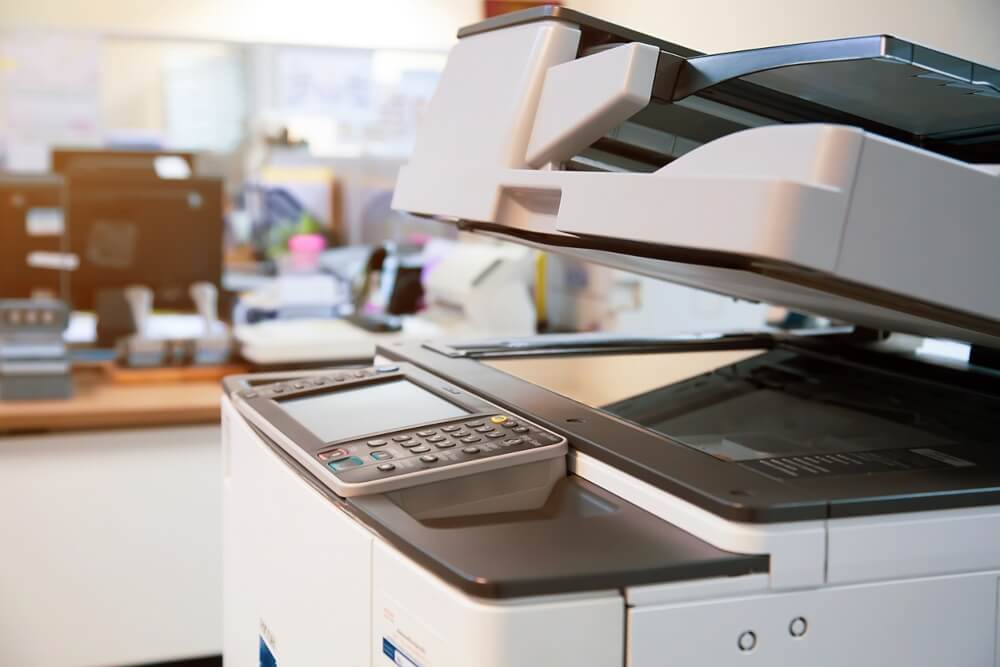
The article covers how to look after a copier and what goes wrong when you don’t. It advises placing the machine in a dust-free spot with good airflow, wiping the exterior with a mild soap solution, and making sure toner and cartridge doors are seated properly. It warns against putting hot drinks on the machine, keeping it near strong magnets, or exposing it to moisture. Skipping cleaning lets toner and paper dust build up, which causes streaks and spots, so follow the manufacturer’s maintenance schedule.
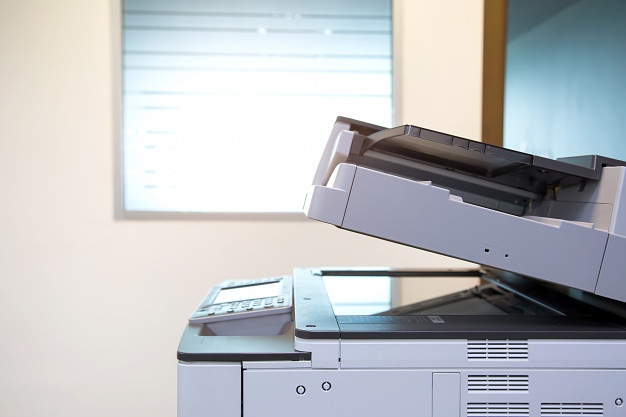
The article walks through three issues on the Xerox 5755 and how to handle each. For slow printing, lower the resolution for everyday documents, consider simplex mode, and pick the PCL driver for faster office output, adding memory for large graphics files. For jams, follow the control panel or user guide, pull stuck paper out straight, re-seat the tray, and store paper dry. For smudges or faded text, match the paper type in the driver to what’s loaded, and check the toner, fuser, and imaging unit for damage.

The article says print quality starts before the printer, with the camera’s resolution and the image you choose. Shoot at the highest size, pick the sharpest image, and be careful with images found online, using Google’s “Large” size filter to find better versions. If the print still falls short, raise the DPI setting, check the printer’s color capacity, and use quality paper with a hard, low-porosity finish. If you’re unsure of the settings, a service provider can help.

The article describes the 9025 as a color inkjet all-in-one that HP aims at small offices of up to 50 people, with wireless and mobile printing, an automatic duplexer, and a 100-sheet input tray. It highlights lower electricity use than a laser printer, a two-cartridge system, and the Instant Ink subscription that ships ink automatically. It also claims prints last far longer than laser prints. The page contradicts itself on speed, listing 30, 45, and 50 pages per minute, so the figures can’t be trusted as written.